
1. Navigation & Directory Management
These commands allow you to move around the file system, view contents, and manage folders.
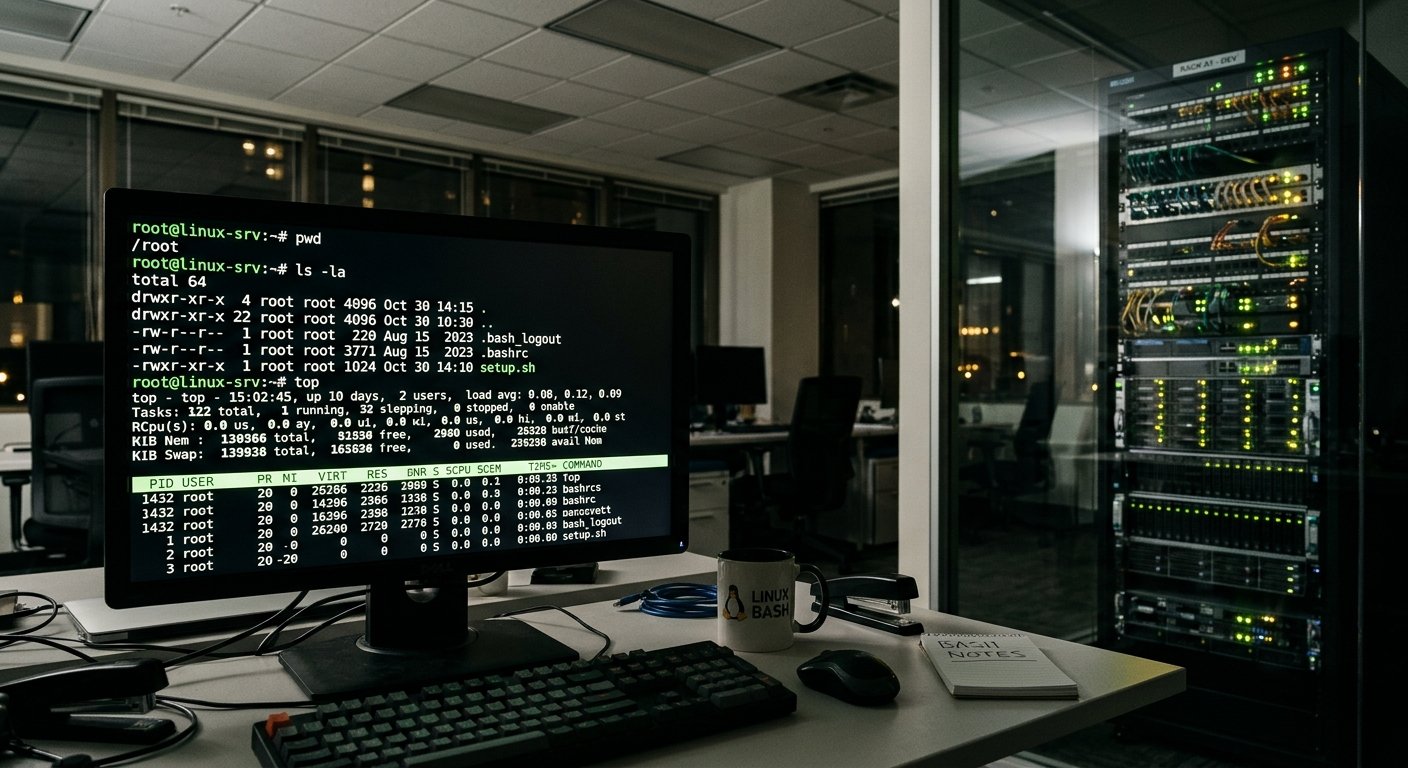
pwd(Print Working Directory)- Usage:
pwd - Meaning: Displays the absolute path of the current working directory you are in. Learn more via the GNU Coreutils Documentation.
- Usage:
ls(List)- Usage:
ls -la(Lists all files, including hidden ones, in a detailed list format) - Meaning: Lists directory contents. Common flags include
-l(long format) and-a(all hidden files). Check out this DigitalOcean Linux Command Cheat Sheet for more options.
- Usage:
cd(Change Directory)- Usage:
cd /path/to/directoryorcd ~(goes to home) - Meaning: Changes your current working directory. Typing
cd ..moves you up one level.
- Usage:
mkdir(Make Directory)- Usage:
mkdir my_folderormkdir -p path/to/nested/folder - Meaning: Creates a new directory. The
-pflag creates parent directories as needed without throwing an error if they already exist.
- Usage:
2. File & Text Manipulation
Create, move, copy, delete, and inspect files with these core utilities.
touch- Usage:
touch filename.txt - Meaning: Creates an empty file or updates the access/modification timestamps of an existing file.
- Usage:
cp(Copy)- Usage:
cp source.txt destination.txt(use-rfor directories) - Meaning: Copies files or directories from one location to another.
- Usage:
mv(Move/Rename)- Usage:
mv old_name.txt new_name.txtormv file.txt /path/to/destination/ - Meaning: Moves files/directories or renames them if the destination is in the same directory.
- Usage:
rm(Remove)- Usage:
rm filename.txtorrm -rf folder_name/ - Meaning: Deletes files or directories. Warning: The
-rfflag forces recursive deletion without prompting—use with extreme care! Read more on safety precautions via Linuxize.
- Usage:
cat(Concatenate)- Usage:
cat filename.txt - Meaning: Outputs the entire contents of a file to the terminal screen. Great for quick viewing of small files.
- Usage:
less- Usage:
less large_file.log - Meaning: Opens a file interactively, allowing you to scroll page-by-page through large logs without flooding your terminal. Press
qto exit.
- Usage:
head/tail- Usage:
head -n 20 file.txtortail -f /var/log/syslog - Meaning:
headoutputs the first lines of a file (default 10), whiletailoutputs the last lines. The-fflag ontailis especially useful for real-time log monitoring.
- Usage:
3. Searching & Filtering
Quickly find files or search through text content.
grep(Global Regular Expression Print)- Usage:
grep "error" logfile.txtorgrep -r "search_term" ./ - Meaning: Searches for specific patterns or strings inside files. For deep dives into text searching, check out GNU Grep Documentation.
- Usage:
find- Usage:
find /home/user/ -name "*.txt" - Meaning: Searches for files and directories across the file system based on name, size, modification date, or permissions.
- Usage:
4. Permissions & Administration
Control access rights and execute administrative tasks.
chmod(Change Mode)- Usage:
chmod 755 script.shorchmod +x script.sh - Meaning: Modifies file or directory permissions (Read, Write, Execute) for user, group, and others.
- Usage:
chown(Change Owner)- Usage:
chown username:groupname filename.txt - Meaning: Changes the user and/or group ownership of a file or directory.
- Usage:
sudo(Superuser Do)- Usage:
sudo apt update - Meaning: Executes a command with elevated administrative (root) privileges.
- Usage:
5. System & Network Monitoring
Keep an eye on system resources, processes, and network connectivity.
ps(Process Status)- Usage:
ps aux - Meaning: Displays a snapshot of currently running processes.
- Usage:
top/htop- Usage:
toporhtop - Meaning: Displays dynamic, real-time views of system performance, CPU usage, memory utilization, and active processes.
- Usage:
df(Disk Free) &du(Disk Usage)- Usage:
df -h(human-readable) ordu -sh folder_name/ - Meaning:
dfshows available disk space on file systems, whiledusummarizes disk space used by specific files or directories.
- Usage:
free- Usage:
free -m(displays in megabytes) - Meaning: Displays the total amount of free and used physical and swap memory in the system.
- Usage:
curl/wget- Usage:
curl -O https://example.com/file.ziporwget https://example.com/file.zip - Meaning: Command-line tools used to transfer data from or to servers, commonly used for downloading files or testing APIs.
- Usage: