For many users, computers are defined by graphical user interfaces—desktops populated by windows, icons, menus, and pointers. However, beneath this polished exterior lies a powerful, highly efficient engine traditionally controlled through text: the command line interface (CLI). In the realm of Unix-like operating systems, particularly Linux, the command line is not merely an alternative way to interact with the system; it is often the most direct, flexible, and powerful tool available. Understanding the basic Linux command line unlocks a deeper comprehension of how operating systems function, empowering developers, system administrators, and power users alike.
The Anatomy of the Shell and Terminal
To understand the command line, one must first distinguish between the terminal and the shell. The terminal is the graphical application or interface window that accepts text input, while the shell is the underlying program that interprets those commands and executes them. The default shell on most modern Linux distributions is Bash (Bourne Again SHell), though others like Zsh are also widely used.
When a user opens a terminal, they are greeted by a prompt—typically consisting of the username, machine name, current directory, and a symbol like a dollar sign ($) indicating readiness for input. Commands are typed directly into this prompt, followed by the Enter key. According to introductory guides provided by resources like the Ubuntu Command Line Tutorial, mastering these prompts allows users to bypass resource-heavy graphical menus and perform tasks with lightning speed.
Navigating the Filesystem
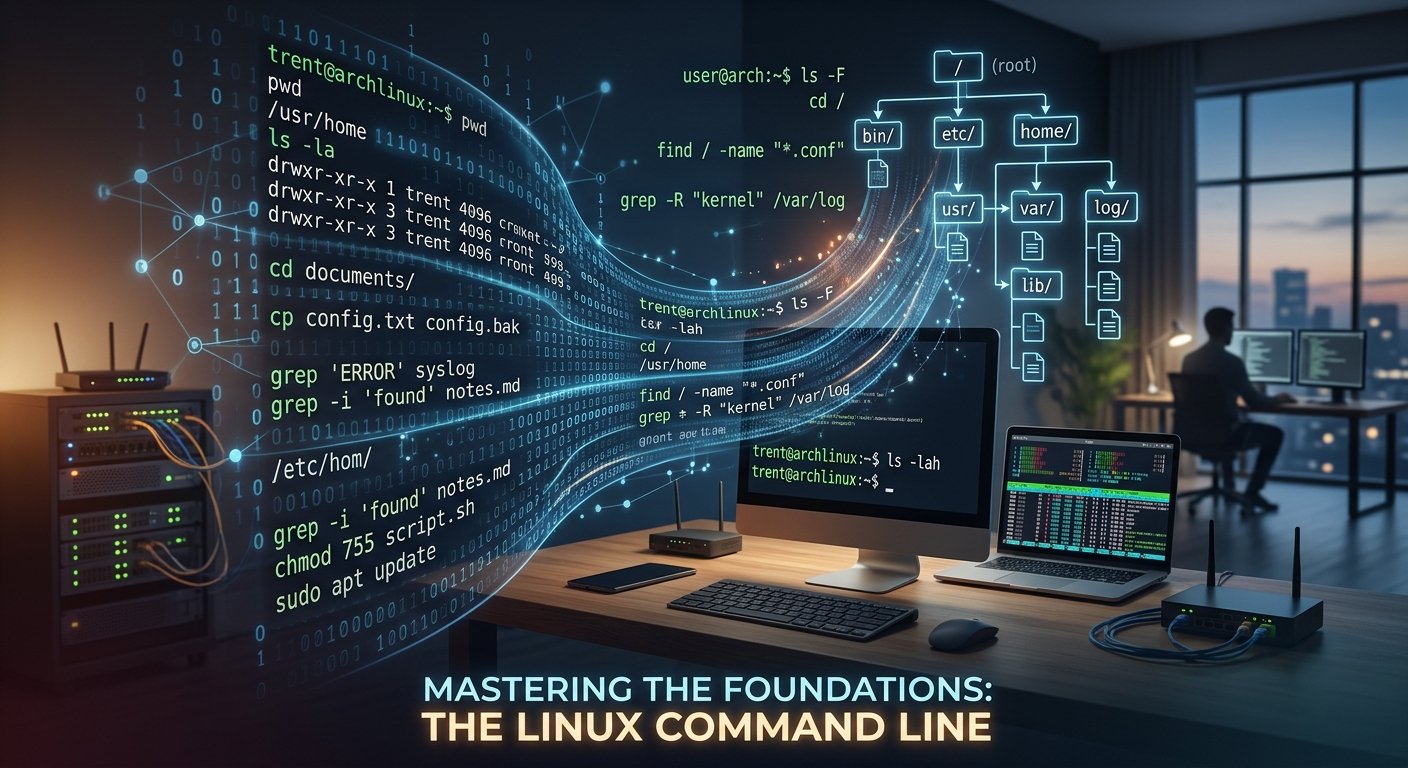
Unlike a graphical file manager where users click through nested folders, the Linux CLI treats the entire filesystem as a single, unified tree originating from a root directory denoted by a forward slash (/). Navigating this tree relies on a few fundamental movement commands.
pwd(Print Working Directory): Tells the user precisely where they are located within the directory tree.ls(List): Displays the contents of the current directory. When combined with flags like-l(long format) or-a(show hidden files), it reveals detailed file metadata and permissions.cd(Change Directory): Allows the user to move between directories. For example, typingcd /var/logmoves the user directly to the system log directory, while typingcd ..moves one level up in the hierarchy.
These navigation concepts form the bedrock of file interaction, a topic thoroughly documented in resources like the Linux Documentation Project.
Managing Files and Directories
Once a user can navigate the filesystem, the next step is manipulation. Linux provides concise utilities to create, copy, move, and delete files and directories without ever lifting hands from the keyboard.
mkdirandrmdir: Used to create and remove empty directories, respectively.touch: Creates a new, empty file or updates the timestamp of an existing one.cp(Copy) andmv(Move/Rename): Thecpcommand duplicates files or directories, whilemvrelocates them. Becausemvchanges a file’s path, it also serves as the primary tool for renaming files in the CLI.rm(Remove): Deletes files. Users must exercise caution with this command, especially when combined with recursive flags (-r) or force flags (-f), as deletions via the command line typically bypass the desktop trash bin entirely.
Comprehensive details on the behavior and options of these file utilities can be found in the official GNU Coreutils Documentation.
Searching and Inspecting Content
One of the greatest strengths of the command line is its ability to inspect, filter, and search text files rapidly. Instead of opening a heavy text editor, administrators can use commands like cat to print file contents to the screen, or less to page through large files interactively.
Furthermore, tools like grep allow users to search for specific patterns or words within files, acting as a powerful text-filtering engine. Combined with the find utility, which searches for files across the disk based on name, size, or modification date, the CLI provides search capabilities far exceeding standard graphical file managers. Tutorials covering these advanced inspection techniques are frequently featured on platforms like the DigitalOcean Community Linux Tutorials.
Permissions and Administration
Because Linux is inherently a multi-user operating system, security and permissions are built directly into the command line workflow. Every file and directory is assigned specific read, write, and execute permissions for its owner, group, and others. The chmod command modifies these permissions, ensuring system integrity.
When administrative tasks require elevated privileges—such as installing software or modifying system configurations—users invoke the sudo (Superuser DO) prefix. This grants temporary administrative privileges, balancing operational flexibility with system security.
Conclusion
The Linux command line may initially appear intimidating due to its strict syntax and lack of visual hand-holding. However, behind the blinking cursor lies a logical, highly efficient environment. By mastering basic navigation, file manipulation, and text filtering, users transition from passive consumers of graphical interfaces to active commanders of their computing environments. Whether automating repetitive tasks or managing remote cloud servers, the command line remains an indispensable skill in the modern technological landscape.
Source List
- Ubuntu Documentation. The Linux Command Line for Beginners. Available at: https://ubuntu.com/tutorials/command-line-for-beginners
- The Linux Documentation Project (TLDP). Guides and HOWTOs. Available at: https://tldp.org/
- GNU Project. GNU Coreutils Documentation. Available at: https://www.gnu.org/software/coreutils/coreutils.html
- DigitalOcean Community. An Introduction to the Linux Terminal. Available at: https://www.digitalocean.com/community/tutorials/an-introduction-to-the-linux-terminal
More posts will be added which have more details for each of the Linux commands