Installing a Linux distribution on a desktop computer can seem daunting to beginners, but open-source platforms have evolved to become remarkably user-friendly. Among the vast ecosystem of Linux distributions, Fedora Linux stands out as a powerful, secure, and cutting-edge operating system sponsored heavily by Red Hat. Whether you are switching away from proprietary systems or building a brand-new desktop rig, installing Fedora Workstation is a straightforward process. For official downloads, you can always visit the Fedora Project Website.
Phase 1: Preparation and Downloading the ISO
Before touching your computer’s hardware or internal drives, you need to secure the installation media.
- Choose Your Edition: For a standard personal computer, navigate to the Fedora Workstation Download Page. If you prefer alternative desktop interfaces like KDE Plasma or XFCE, you can explore the Fedora Spins Portal.
- Get a USB Flash Drive: Grab a blank USB flash drive with a capacity of at least 4GB. Keep in mind that any data currently on this drive will be completely erased.
- Create Bootable Media: To transfer the operating system image onto your flash drive, download the Fedora Media Writer tool, which is natively supported on Windows, macOS, and Linux. Alternatively, power users often rely on utilities like BalenaEtcher to flash the ISO image directly.
Phase 2: Booting from the Installation Media
Once your bootable USB drive is ready, leave it plugged into your desktop computer and restart the system.
- Access the Boot Menu: As your computer boots back up, tap your manufacturer’s designated boot menu key repeatedly (commonly
F12,F11,F8, orF15depending on your motherboard, orEscape/Del). If you are unsure how to access it, consult the hardware guides available via PCMag Hardware Support. - Select the USB Drive: From the on-screen boot menu, choose your USB flash drive (often labeled with “UEFI” preceding the brand name).
- Launch the Live Environment: Fedora will load into a bootloader screen. Choose the option to start Fedora Workstation. Once loaded, you will be greeted by a “live” desktop environment. Here, you can test your hardware components—like Wi-Fi, audio, and graphics—to ensure compatibility before committing to a permanent installation.
Phase 3: Running the Installer (Anaconda)
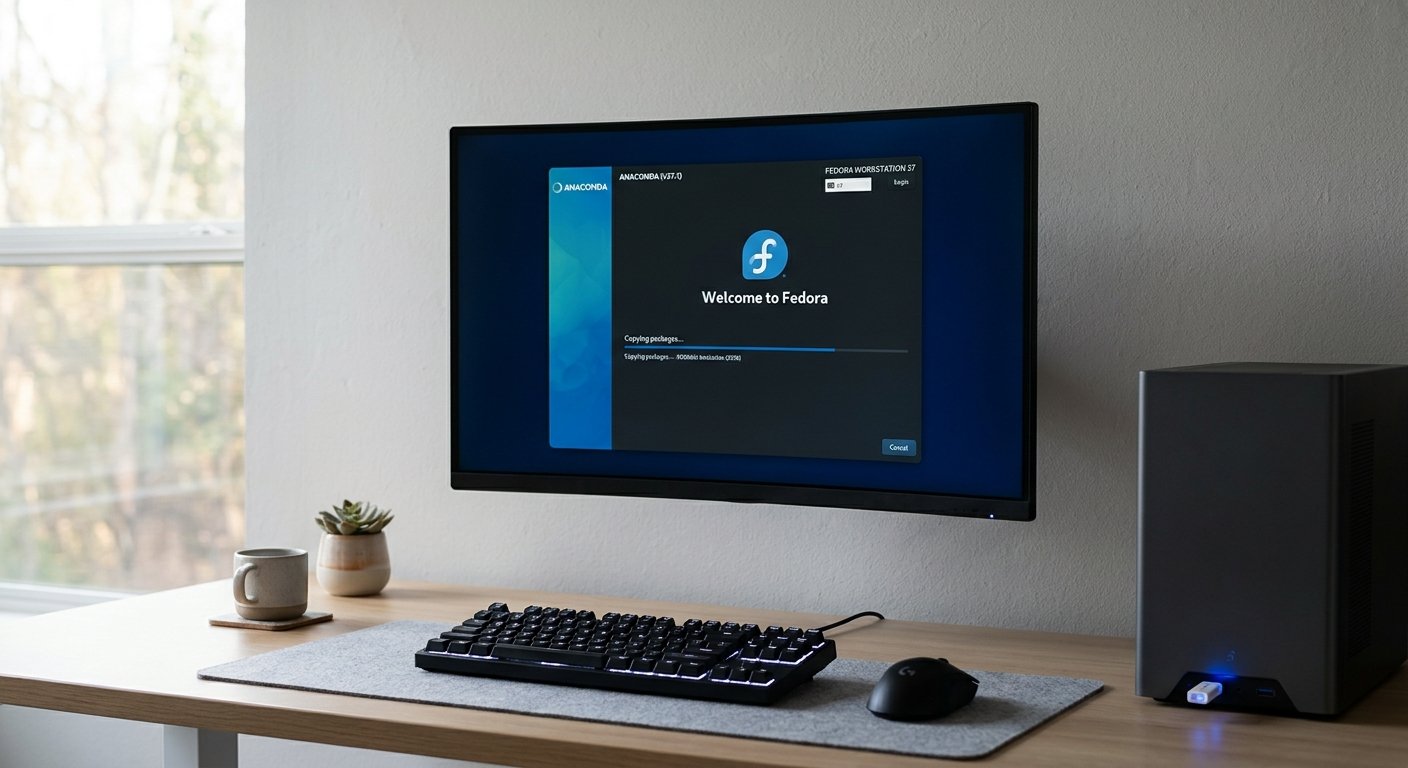
When you are ready to proceed, click the “Install to Hard Drive” icon present on the desktop environment. This triggers Anaconda, Fedora’s robust system installer.
- Language and Localization: Select your preferred language and regional keyboard layout from the initial prompt.
- Installation Destination: Click on the “Installation Destination” panel. Here, select the internal hard drive or SSD where you want Fedora to live.
- If you are wiping an old operating system, you can let the installer automatically configure the storage layout or use the Reclaim Space utility to clear out old partitions.
- For more granular partitioning tips, community platforms like the Fedora Subreddit offer rich archives of user advice.
- Begin Installation: Review your choices and click “Begin Installation”. Fedora will copy and configure the system packages onto your drive. This process usually takes anywhere from 5 to 15 minutes depending on your hardware speed.
Phase 4: Finalizing and Post-Installation
When the progress bar finishes, click Finish Installation and restart your computer, making sure to unplug your USB flash drive so the system doesn’t boot back into the live installer.
Upon your first reboot, a welcome setup assistant will prompt you to create your user account, set a secure password, and optionally connect your online accounts.
Because Fedora prioritizes completely free and open-source software by default, you may want to configure proprietary multimedia codecs or graphics drivers (such as NVIDIA drivers) shortly after logging in. To smooth out your transition, review popular community resources such as the It’s FOSS Fedora Guide for a curated checklist of helpful post-installation tweaks. Welcome to your new Fedora desktop environment!